How to Effectively Remove the Annoying Blogger Navigation Bar (Navbar) for a Cleaner Blog Design
Unlock your blog’s full potential by getting rid of that distracting Blogger navigation bar. This comprehensive guide will walk you through a simple CSS tweak to achieve a professional, clutter-free look, enhancing your blog’s aesthetics and user experience.
For many dedicated bloggers, the default Blogger navigation bar (often referred to as the “Navbar”) can be a persistent eyesore. While Google’s Blogger platform offers an accessible entry point into the world of online publishing, certain default elements can detract from a truly professional and personalized online presence. The navigation bar, prominently displayed at the top of every Blogger site, is one such element that frequently draws criticism from creators striving for a pristine, brand-aligned aesthetic.
You’ve poured countless hours into crafting compelling content, selecting the perfect theme, and curating captivating visuals for your blog. Why should a generic, platform-specific element overshadow your hard work? This sentiment is widely shared, particularly among those who have invested in a custom domain name. If you’ve taken the significant step of securing your own web address, paying for the privilege of ownership, it only makes sense that your blog should truly feel like *yours* – unencumbered by unnecessary third-party branding or design quirks.
The simple act of removing the Blogger navbar can dramatically transform your site, providing a cleaner canvas for your content to shine. It’s not just about aesthetics; it’s about optimizing the user experience, solidifying your brand identity, and giving your blog the polished look it deserves. If you share this vision for a streamlined, professional blog, you’re in the right place. This guide will provide clear, step-by-step instructions on how to bid farewell to the Blogger navigation bar, ensuring your visitors encounter a seamless and engaging experience from the moment they arrive.
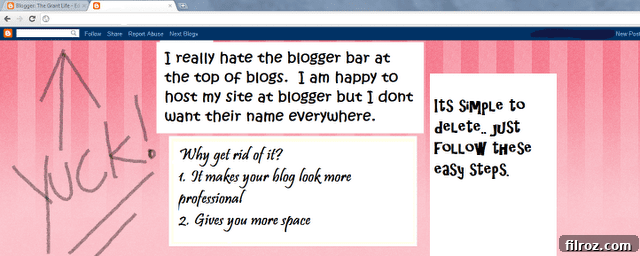
An example of the Blogger navigation bar, typically found at the top of your blog.
Why the Blogger Navbar is Often Considered a Nuisance
Before diving into the solution, let’s explore the key reasons why removing the Blogger navigation bar is a highly recommended customization for many bloggers:
1. Aesthetic Disruption and Clutter
The most immediate impact of the navbar is its visual presence. It occupies a strip of valuable screen real estate at the very top of your blog, often clashing with your chosen theme and design elements. This can lead to a cluttered look, distracting visitors from your header, logo, and the crucial first glimpse of your content. A clean, uncluttered interface is paramount for a modern web experience, and the navbar often works against this principle.
2. Undermining Brand Identity and Professionalism
When you’ve invested in a custom domain (e.g., yourdomain.com), you’re actively building your unique brand. The Blogger navbar, with its “Blogger” logo and links, serves as a constant reminder that your site is hosted on a specific platform. This can subtly diminish the professional image you’re trying to cultivate, making your blog feel less independent and more like a sub-section of a larger platform. Removing it reinforces the perception that this is *your* dedicated online space, strengthening your brand’s autonomy.
3. Improved User Experience (UX)
In today’s fast-paced digital world, first impressions matter immensely. When a visitor lands on your blog, you want them to immediately engage with your primary content without any visual obstacles. The navbar can push down your blog’s title, navigation menu, and the crucial opening lines of your first post, requiring users to scroll down immediately. A clean top-of-page experience ensures that your valuable content is seen immediately, potentially leading to lower bounce rates and longer engagement times, which are positive signals for SEO.
4. Better Mobile Responsiveness
While modern Blogger themes are generally responsive, every element consumes space, especially on smaller mobile screens. Removing the static navigation bar frees up precious vertical space, allowing your content to occupy more of the viewport and adapt more gracefully across various devices. This contributes to a more seamless and enjoyable reading experience for your mobile audience.
Preparing for the Change: A Quick Precaution
Before making any modifications to your blog’s HTML template, it’s always a good practice to back up your existing template. This ensures that you can easily revert to a previous version if anything goes awry or if you wish to undo the changes later. Blogger typically offers a “Download theme” option within the Theme or Design section of your dashboard.
Step-by-Step Guide: How to Remove the Blogger Navbar
The process involves a simple tweak to your blog’s HTML, specifically by adding a small piece of CSS code. Don’t worry if you’re not a coding expert; the instructions are straightforward.
-
Step 1: Navigate to Your Blog’s HTML Editor
First, you need to access the core of your blog’s design. Log in to your Blogger account. On your dashboard, locate the menu on the left sidebar. Click on “Theme” (or “Design,” depending on your Blogger interface version). Once in the Theme section, you’ll see an option like “Customize” or “Edit HTML.” Click on “Edit HTML” to open the template code editor. This is where you’ll be making the necessary modification.
-
Step 2: Find the Closing CSS Tag `]]>`
Within the HTML editor, you’ll see a lot of code. Don’t be intimidated! You’re looking for a specific snippet:
]]>. This particular sequence typically marks the end of the CSS (Cascading Style Sheets) section within Blogger templates, or sometimes the end of an XML data section where custom styles can be injected. To find it quickly, use your browser’s search function (usually Ctrl+F on Windows or Cmd+F on Mac) and type]]>into the search box. Press Enter, and the browser will highlight its location in the code.]]>It’s crucial to find this exact sequence, as you’ll be inserting your custom CSS *just before* it. This ensures your style rules are applied correctly within the existing template structure.
-
Step 3: Insert the Magic CSS Code
Now comes the actual modification. Just before the
]]>tag you found in the previous step, you will paste the following CSS code. This code specifically targets the Blogger navigation bar element and instructs the browser to hide it completely.#navbar { height: 0px; visibility: hidden; display: none; }Let’s quickly break down what this code does:
- `#navbar`: This is a CSS selector that targets an HTML element with the ID “navbar”. Blogger’s navigation bar is typically assigned this ID, making it the perfect target for our style rules.
- `height: 0px;`: This property sets the height of the navigation bar to zero pixels, effectively removing any vertical space it might occupy.
- `visibility: hidden;`: This property makes the element invisible. However, it’s important to note that `visibility: hidden;` still reserves the space that the element *would* occupy, meaning it might leave an empty gap.
- `display: none;`: This is the most critical property. Unlike `visibility: hidden;`, `display: none;` completely removes the element from the document flow. It means the browser will render the page as if the `#navbar` element never existed, freeing up its space and eliminating any potential gaps. This is the ultimate method for completely hiding and removing an element from the page layout.
By combining these properties, we ensure that the Blogger navbar is not only hidden from view but also completely removed from the page’s layout, leaving no empty space behind.
-
Step 4: Preview Your Changes and Save
After pasting the code, locate the “Preview” button (usually at the bottom or top of the HTML editor). Click it to see how your blog looks with the changes applied, but without saving them permanently yet. Carefully inspect your blog; the Blogger navigation bar should now be completely gone, leaving a clean, uninterrupted top section.
If everything looks correct and the bar is no longer visible, return to the HTML editor and click the “Save” (or “Save theme”) button. Your changes will now be live on your blog for all visitors to see. If for any reason the bar is still there, double-check that you’ve pasted the code correctly and in the right location (just before
]]>).
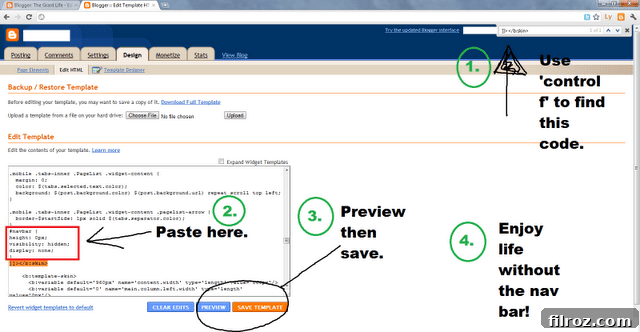
Your blog’s cleaner appearance after successfully removing the navigation bar.
The Benefits of a Navbar-Free Blog
Congratulations! You’ve successfully decluttered your blog and taken a significant step towards a more professional online presence. The benefits of this simple CSS tweak are numerous and impactful:
- Enhanced Professionalism: Your blog now boasts a sleeker, more modern design that rivals dedicated websites.
- Improved User Experience: Visitors can immediately focus on your unique content and branding without unnecessary distractions.
- Stronger Brand Identity: With the Blogger branding removed, your custom domain truly shines, reinforcing your unique identity.
- Optimized Aesthetics: Your blog’s header, logo, and initial content can occupy their rightful place at the top of the page, creating a more visually appealing layout.
- Potential SEO Advantage: While indirect, a cleaner, more engaging user experience can lead to increased visitor dwell time and lower bounce rates, both of which are positive signals for search engines.
This small change yields a profound impact on how your blog is perceived, both by your audience and by you, the creator. It empowers you with greater control over your site’s appearance and ensures that every pixel contributes to your overall message and brand.
Final Thoughts: Embrace Your Clean Blog
Ah, sweet victory! The removal of the Blogger navigation bar is a satisfying customization that many bloggers appreciate. It’s a testament to how minor adjustments can lead to significant improvements in your blog’s overall appeal and functionality. You’ve successfully streamlined your platform, allowing your content and design to truly take center stage.
What are your feelings on the default Blogger navigation bar? Did you love it, hate it, or simply not care? Either way, we hope this detailed guide has been incredibly helpful in achieving a cleaner, more professional look for your blog. Share your thoughts in the comments below!