Welcome, dear readers! Today, we’re diving into a crucial, yet often overlooked, aspect of online branding: your website’s favicon. While the thought of creating my own tutorial on customizing this tiny but mighty icon crossed my mind, I discovered an exceptional guide already crafted by the incredibly talented sisters, Cari and Cortnee, from Two Sasters. Their tutorial is so comprehensive and easy to follow that it surpasses anything I could have put together. So, instead of reinventing the wheel, I’m thrilled to share their invaluable insights with you. Get ready to elevate your blog’s visual identity with a custom favicon!

Meet the Creative Minds Behind the Tutorial: Two Sasters
Hello everyone! For those unfamiliar with us, we are Cari and Cortnee, two sisters passionate about blogging, crafting, and sharing valuable tips. You can find us blogging regularly over at Two Sasters, where we share a diverse range of content from creative inspiration to practical tech advice. Beyond our blog, we also channel our creativity into crafting beautiful, handmade kids’ shirts and bows, which you can explore at our Etsy shop, CGCDesign!
Our bond is unique, and so is our playful term for it! Aside from our college years, we haven’t lived more than a few miles apart since moving out of Mom and Dad’s house. The term “Saster” was lovingly coined by us – it simply resonates more with our fun-loving spirit than the traditional “sister,” though rest assured, it carries the same profound meaning of sisterhood and connection.
A little about us personally: Cari, the elder by 14 months, enjoys life with her wonderful husband and their energetic 2-year-old daughter. Cortnee and her husband are excitedly awaiting the arrival of their first child, due any day now! We love sharing our journey and connecting with our community through our various creative endeavors.
At Two Sasters, our weekly content calendar is packed with inspiration! We kick off our Mondays by enthusiastically promoting incredible handmade items, shining a spotlight on talented creators. As the week winds down, we host our popular TGIF – Share What You Did party, a vibrant community event where everyone can showcase their recent projects and achievements. In between these regular features, we delve into a variety of topics we’re passionate about, including creative crafting ideas, practical money-saving tips, and, more recently, essential blogging and technical advice – which brings us to today’s insightful tutorial.
Today, we are thrilled to share a detailed tutorial that was originally featured on our site as part of our beloved weekly series, “Techy Tips on Tuesdays.” This guide will walk you through the simple yet impactful process of customizing your favicon, a small detail that makes a big difference in your online presence.
Unlock Your Blog’s Potential: A Comprehensive Guide to Custom Favicons
Ever noticed that tiny, distinctive image next to a website’s name in your browser tab, bookmark list, or even search results? That’s no accident; it’s a “Favicon” – short for “Favorite Icon.” This small graphic plays a monumental role in branding and user experience. Let’s explore how to create your very own, ensuring your blog leaves a memorable mark!

Why a Custom Favicon is Essential for Your Blog’s Brand
In the vast digital landscape, standing out is paramount. A custom favicon is more than just a decorative element; it’s a strategic branding tool that silently works wonders for your online presence.
- Instant Recognition & Branding: Your favicon is often the first visual identifier for your site. It appears in browser tabs, bookmark lists, history, and even search results (depending on the browser and context). A well-designed favicon makes your site instantly recognizable, reinforcing your brand identity with every glance.
- Professionalism & Credibility: A generic, default favicon signals an unfinished or less professional website. Customizing it demonstrates attention to detail and commitment to your brand, instilling trust and credibility in your visitors.
- Enhanced User Experience (UX): When users have multiple tabs open, a distinct favicon helps them quickly locate and navigate back to your site. This seamless experience contributes to higher engagement and a more positive perception of your blog.
- Mobile Usability: While the primary focus is desktop browsers, favicons also appear on mobile devices when users add your site to their home screen as a shortcut. A clear, optimized favicon ensures a consistent and professional look across all platforms.
While a favicon isn’t a direct SEO ranking factor, its contribution to user experience and brand recognition can indirectly support your SEO efforts. A better user experience often leads to longer site visits and lower bounce rates, signals that search engines value.
Designing Your Perfect Favicon: Tips for Success
Before diving into the technical steps, consider these design principles to create a favicon that truly represents your brand:
- Keep it Simple: Favicons are incredibly small (typically 16×16 pixels). Intricate details or text will be lost. Opt for a simple, recognizable symbol, a single letter (like your brand’s initial), or a simplified version of your logo.
- Brand Alignment: Your favicon should be an extension of your overall brand identity. Use your brand colors, typography (if simplified to an initial), or a core element from your logo.
- High Contrast: Ensure your design stands out against various browser backgrounds (light, dark, different themes). High contrast makes your icon more legible.
- Scalability: Design your image at a slightly larger size (e.g., 64×64 or 256×256 pixels) first, then scale it down. This allows for better control over the final pixelated appearance and ensures it looks good at its tiny resolution.
- Test Transparency: If your design benefits from a transparent background, ensure your chosen image format (PNG) supports it before conversion to ICO.
Remember, the goal is instant recognition. A well-designed favicon speaks volumes even in its miniature form.
Step-by-Step Guide: Creating and Installing Your Custom Favicon
Ready to give your blog a unique identity? Follow these straightforward steps to create and implement your personalized favicon. For this tutorial, we’ll be using PicMonkey for image editing and a specific online converter, but the principles apply to other tools as well.
-
Step 1: Prepare Your Image in PicMonkey
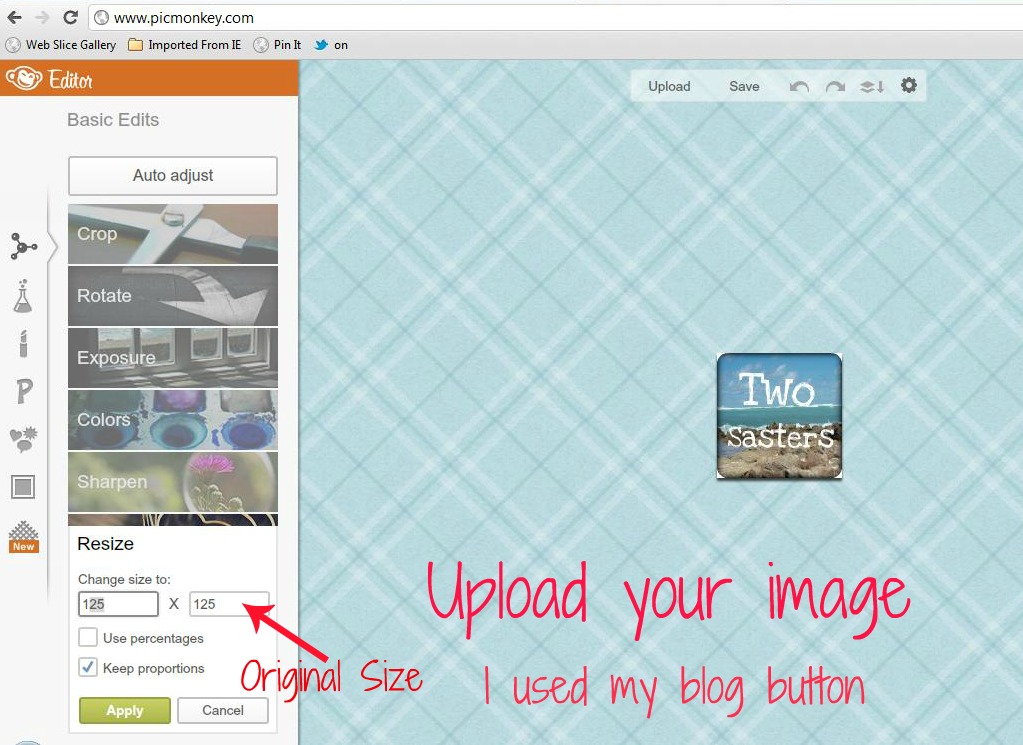
Begin by opening PicMonkey (or your preferred image editor like Canva, Photoshop, or GIMP). Upload the image you intend to use as your favicon. This could be your blog’s logo, a distinctive initial, or a small graphic that represents your brand. In many cases, bloggers use a simplified version of their blog button or main logo.

-
Step 2: Resize Your Image to Favicon Dimensions
The standard size for a favicon is a petite 16×16 pixels. Navigate to the resizing options in PicMonkey and set both the width and height to 16 pixels. While modern browsers can handle larger favicon sizes (like 32×32, 48×48, or even 256×256 for high-resolution displays and specific contexts), 16×16 remains the most crucial and universally supported dimension for browser tabs. Ensure your design is recognizable and clear even at this tiny scale.
-
Step 3: Save Your Image as a PNG File
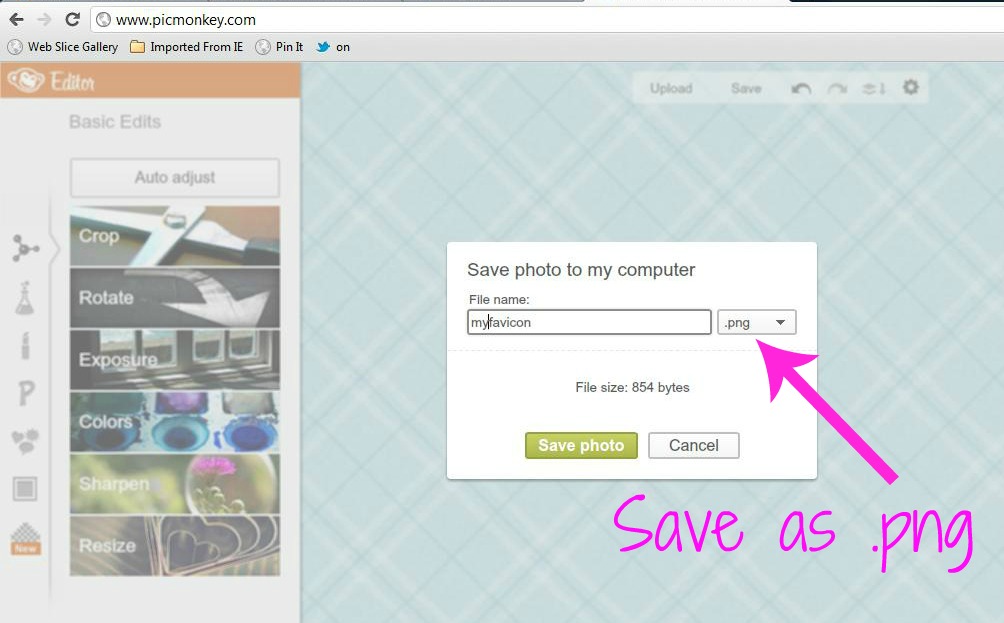
After resizing, save your image. It is highly recommended to save it as a .png (Portable Network Graphics) file. PNG supports transparency, which is excellent for favicons, allowing your icon to blend seamlessly with various browser tab colors without a harsh white or colored box around it. This intermediate step ensures the best quality before the final conversion.
-
Step 4: Convert Your PNG to an ICO File
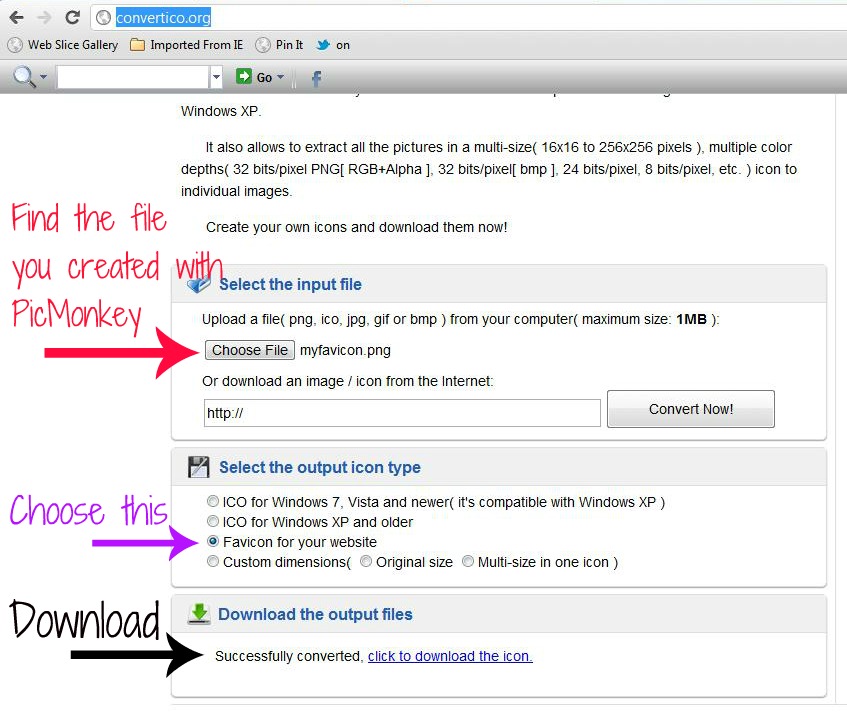
For universal compatibility across all browsers and platforms, your favicon needs to be in the `.ico` (icon) file format. This format can contain multiple image sizes and color depths within a single file, ensuring your favicon looks crisp everywhere. Perform a quick Google search for “PNG to ICO converter,” and you’ll find many reliable online tools. The original tutorial specifically recommends https://convertico.org/, which is a great option. Simply upload your newly saved .png file and convert it. Download the resulting .ico file.
-
Step 5: Navigate to Your Blogger Dashboard (or Website Backend)
Now that you have your perfect .ico file, it’s time to upload it to your blog. If you’re using Blogger, head over to your Blogger dashboard. On the left-hand menu, you’ll typically find a section for “Layout.” Click on “Layout,” and within that section, usually at the top left, you will see the “Favicon” widget.
For Non-Blogger Users (e.g., WordPress, custom HTML sites): The process will vary. In WordPress, many themes offer a favicon/site icon option under “Appearance” > “Customize” > “Site Identity.” For custom HTML sites, you’ll need to upload your `favicon.ico` file to your website’s root directory and add a specific “ tag within the `
-
Step 6: Edit the Favicon Widget
Click on the “Edit” link next to the Favicon widget. This action will open a new window or pop-up box, allowing you to manage your favicon settings.
-
Step 7: Upload Your ICO File and Save
Within the favicon editing window, you will find an option to “Choose File” or “Upload Image.” Click this, locate the `.ico` file you downloaded in Step 4 on your computer, select it, and then click “Save.”



Troubleshooting: What to Do If Your Favicon Doesn’t Appear Immediately
Congratulations! You’ve successfully uploaded your custom favicon. However, it’s quite common for your new favicon not to appear instantly. Don’t panic; this is usually due to browser caching.
- Browser Caching: Your browser, and sometimes even your website’s server, stores old versions of files to speed up loading times. This means it might still be displaying your old favicon (or no favicon at all).
- Clear Your Browser’s Cache: The quickest solution is to clear your browser’s cache and cookies. Instructions vary slightly by browser, but typically you can find this option in your browser’s settings under “Privacy and Security” or “History.” After clearing, restart your browser and visit your blog again.
- Wait a Few Hours: Sometimes, it simply takes time for the changes to propagate across servers and for browsers to refresh their cache. Check back after a few hours, or even a day, and your favicon should eventually appear.
-
Verify Direct Link: To confirm your favicon was uploaded correctly, you can try accessing it directly via its URL. For Blogger, this URL typically follows the pattern:
https://www.yourblogname.blogspot.com/favicon.ico
Just remember to replace “yourblogname” with the actual name of your blog. If you see your favicon when you visit this URL, then it’s correctly installed and just awaiting browser refresh. - Inspect HTML (Advanced): For self-hosted sites, you can inspect your website’s source code (right-click -> “Inspect” or “View Page Source”) and look for the “ tag within the `
Once your favicon appears, take a moment to admire your work! It’s a small detail that contributes significantly to your blog’s professional look and feel.
Conclusion: Elevate Your Blog’s Brand with a Custom Favicon
Customizing your favicon is a quick, easy, and incredibly effective way to enhance your blog’s branding, improve user experience, and project a more professional image. By following the simple steps outlined by Cari and Cortnee from Two Sasters, you can transform a generic icon into a powerful visual identifier for your online presence.
We hope this comprehensive guide has been immensely helpful in empowering you to take control of this vital branding element. If you have any questions or encounter any issues during the process, please don’t hesitate to reach out. We’re always happy to assist our fellow bloggers!
A HUGE thank you to Kelley for graciously hosting us and allowing us to share this valuable tutorial with her audience today! We truly appreciate the opportunity to connect with you all.
We’d absolutely love for you to stop by Two Sasters and say hi! We love connecting with our readers and will be sure to return the favor by visiting your wonderful blogs as well. Happy blogging!
–[Lovely June Sponsor]–